
YuJa Panorama
Advancing Accessibility in Canvas with YuJa Panorama
YuJa Panorama, a powerful accessibility platform integrated in Canvas, has launched at the University of Tennessee, to help instructors improve the accessibility of course content, enhance the learning experience for all students, and support the university’s commitment to meeting WCAG, ADA, and Section 508 standards.
YuJa Panorama provides efficient and comprehensive ways to improve accessibility of Canvas courses, expanding upon the capabilities of the existing Canvas accessibility tools.
- Automated Accessibility Scanning. YuJa Panorama automatically and continuously scans course digital media and course content.
- File-Level Scanning. In addition to web-based Canvas content, such as Canvas pages and assignments, YuJa Panorama automatically evaluates uploaded course files, including PDFs, Word, and PowerPoint. This is an important feature that is currently not supported by other tools.
- Accessibility Report. Each course receives an accessibility score along with a detailed report of issues categorized by severity. This allows instructors to prioritize the most impactful improvements.
- Guided Remediation. YuJa Panorama provides clear, step-by-step guidance for resolving accessibility issues. These recommendations are practical and easy to follow, requiring no advanced technical knowledge.
- Alternative Formats for Students. Students can access automatically generated alternative formats of the course materials, that suit their learning needs, such as audio, mobile-friendly html, electronic Braille, and more.
- Campus Canvas Accessibility Performance. YuJa Panorama provides institution-level accessibility reporting across the Canvas environment, offering clear visibility into cumulative accessibility scores, recurring accessibility issues across courses, and student use of alternative formats. These insights enable the university to track progress, target support where it is most needed, and strengthen campus-wide compliance with WCAG, ADA, and Section 508 standards.
Getting Started
YuJa Panorama is available within your Canvas course and can be accessed by selecting the YuJa Panorama link in the course navigation menu.
Where to Begin
- Start with content that students access most often, such as the course syllabus and core readings, documents, and media files.
- Focus on common improvements, such as adding heading styles to structure content and including alternative text for images.
- Prioritize accessibility issues that are marked as severe.
- Start small and build over time. It may not be feasible to fix everything at once. Begin with a few key updates and use the accessibility score and reports to make incremental improvements.
Canvas Accessibility: YuJa Panorama Guides
YuJa Panorama scans Canvas course content to identify accessibility issues. As course content is scanned, YuJa Panorama generates an accessibility score and displays an icon that reflects the score. Instructors will use the scores and icons to prioritize accessibility efforts or begin remediation.
NOTE: YuJa Panorama is a valuable support resource, but it does not replace intentional accessible design or compliance requirements. Instructors are responsible for ensuring their course content meets ADA and Section 508 standards.
- WHERE IS IT?
YuJa Panorama is available within your Canvas course and can be accessed by selecting the YuJa Panorama link in the course navigation menu. You will see YuJa Panorama icons across many elements of your course content such as Modules, Pages, and Files. Instructors can click on these icons to get more information about what was flagged along with step-by-step instructions for making the item more accessible.
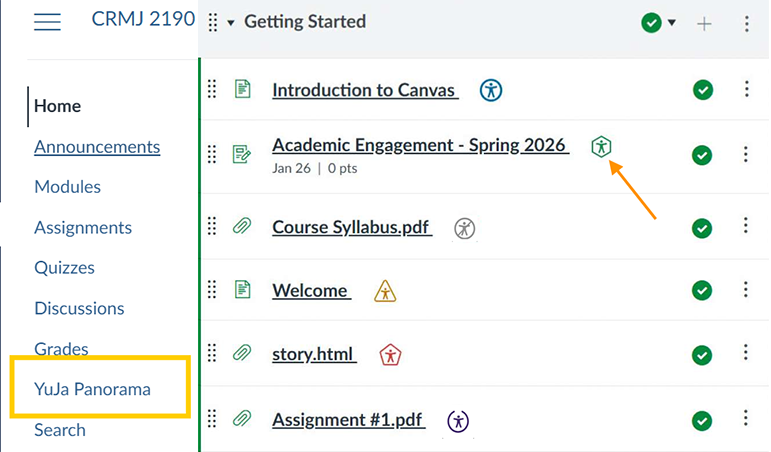
- SCORES & ICONS
SCORES
Panorama assigns accessibility scores to your documents. Students do NOT see these scores. They only see the alternative formats options.
These scores:
- Reflect how accessible your content is.
- Help you prioritize remediation.
- Are not a grade, but a guide.
🎯 Goal: Aim for a high score, but focus on meaningful accessibility, ensuring all students can access and engage with your content.
ICONS
Accessibility score icons are displayed next to each file type or at the top of HTML content. These icons use color and shape coding to give you a quick visual summary of the accessibility score. Refer to the icons below to understand what each color indicates:

- HOW TO REMEDIATE CONTENT IN CANVAS
- Locate your document in Canvas, then click the Accessibility Icon to open the Accessibility Report.
- Panorama provides each document with an accessibility score. Click View All Issues to review the list of individual issues identified in the report that contribute to the score.
- For each issue, click Fix Issue to see a summary of how to resolve the matter.
- Review the issue and the solution provided by Panorama. For more details on how to remediate issues, proceed to the next section.
Click the button below to view the full Panorama guide for using the accessibility report to improve the accessibility score:
- ALTERNATIVE FORMATS
YuJa Panorama allows students and instructors to download any file in a number of different formats, increasing the ways they can access the content of the custom page or file.
Available YuJa Panorama alternative formats:
- Source File: View the document in its original format, suitable for download viewing.
- PDF: View the document in PDF format, suitable for both online and download viewing.
- Text File: View the document in a pure text format without any formatting styles, suitable for both online and download viewing.
- Immersive Reader: Allows for customizations to text preferences, grammar options, and reading preferences while following along with the audio playback.
- Gradient Reader: Enhances visual word recognition when reading by providing a guiding color gradient.
- EPUB: View the document in the ebook format, suitable for any ebook reader application.
- Audio Podcast: Audio playback for documents, suitable for both online and download listening.
- Enhanced HTML: HTML documents can be displayed in a dedicated tab to customize the appearance of the document using the Website Accessibility tool.
- Language Translations: Translate a document automatically to over 100 languages, which can be downloaded.
- Math Formats: Convert documents containing math equations into LaTeX, Math Text (i.e. numbers and symbols to words), or MP3 files.
- Latex: Convert documents into LaTeX document format.
- Math Immersive Reader: View a plain-text representation of mathematical expressions with the immersive reader.
- Math Text: Convert documents into printed English, including numbers and symbols.
- Math Audio: Convert documents to MP3.
- MathML: Extract mathematical equations from documents and convert them into HTML files.
- OCR Formats: Convert scanned text into searchable text that screen readers can read.
- OCR Overlaid PDF: Generate a tagged PDF that allows searchable text to be overlaid on the original file.
- OCR Reconstructed PDF: Convert scanned text into a reconstructed tagged PDF file.
- OCR HTML: Convert scanned text into a reconstructed HTML file.
- OCR Text: Convert scanned text into a searchable text file.
- OCR Immersive Reader: View scanned text with the immersive reader.
- OCR Gradient Reader: Read aloud scanned text with a guiding color gradient.
- OCR Audio: Audio playback of all text detected on screen.
- OCR Semantic Text: Convert scanned text into readable, structured text while preserving context and layout.
- OCR Semantic Audio: Convert scanned text into audio with natural intonation and emphasis.
- Braille Formats: Download the document in braille grade 2 formats to read it with a braille reader.
- Braille Grade 2 (BRF): Download the document in Braille Ready File format.
- Braille Grade 2 (UEB): Download the document in Unified English Braille format.
Note: The more accessible a file is, the better the output of the alternative format will be. Thus, a file with low accessibility rating will have a degraded alternative format as compared to a file with a higher accessibility rating.
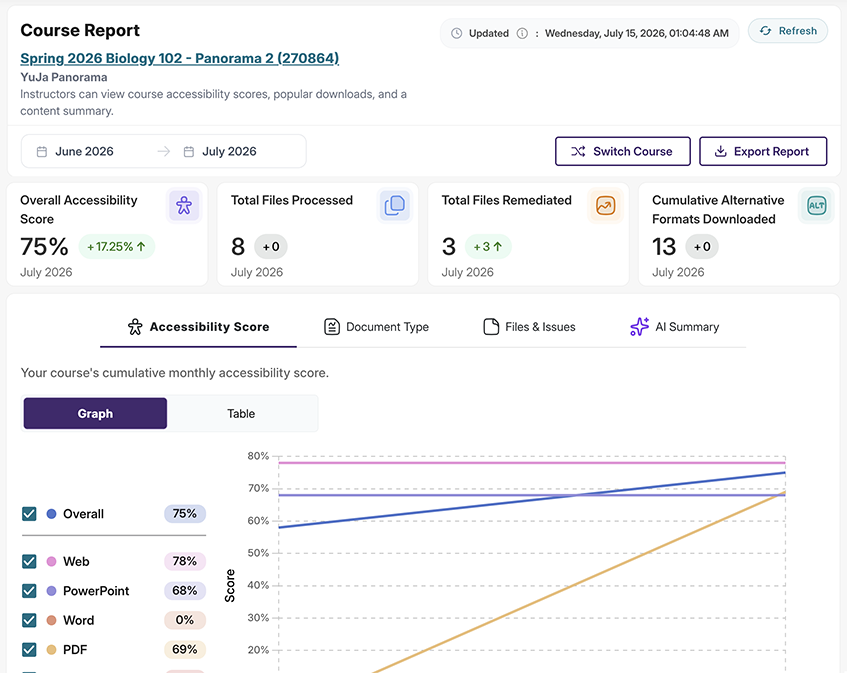
- COURSE REPORT
The Course Report can be found via the YuJa Panorama link in your Canvas course menu.
This report gives you an overview of your scores, progress over time, and scores for specific types of content so that you can get the big picture.
Note: The Course Accessibility Report is not visible to students.
- WHO TO CONTACT FOR SUPPORT
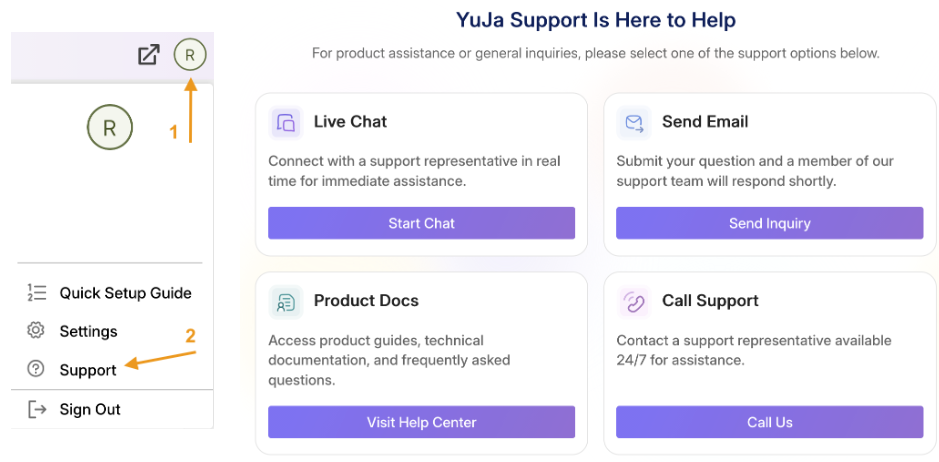
YuJa Panorama support is available 24/7 and can be accessed in Canvas through the YuJa Panorama console. Click on your profile icon (1) in the upper right-hand corner and select Support (2).
Using YuJa Panorama In Your Teaching
- Upload Content as Usual: No need to change your workflow. Upload files to your course the same way you always do.
- Review the Accessibility Indicators: Look for the accessibility score or icon next to each file. This is your cue to review and improve the file, if needed.
- Make Improvements: Use the feedback and inline tools provided to fix accessibility issues.
- Monitor Overall Course Accessibility: YuJa Panorama gives you a course-level report summarizing how accessible your materials are overall. Use this to track your progress and prioritize the most urgent fixes.
Where to Begin
- Start with content that students access most often, such as the course syllabus and core readings, documents, and media files.
- Focus on common improvements, such as adding heading styles to structure content and including alternative text for images.
- Prioritize accessibility issues that are marked as severe.
- Start small and build over time. It may not be feasible to fix everything at once. Begin with a few key updates and use the accessibility score and reports to make incremental improvements.
Recommended Workflow
- Start with red or low-scoring items.
- Fix major issues in high-use materials (syllabus, weekly readings, assignments).
- Work to address minor issues over time.
- Aim for continuous improvement, not perfection.
Why This Matters
Beyond meeting legal standards (like ADA or Title II), accessible content improves the learning experience for everyone. Students using mobile devices, studying on the go, or managing learning challenges benefit from multiple ways to access course materials. YuJa Panorama helps instructors save time with automatic scanning and format generation, create more inclusive, student-centered courses, reduce last-minute accommodations, and feel confident about accessibility compliance.
Accessibility isn't a one-time task -- it's an ongoing commitment to equity and inclusion. Even small steps can make a big difference in ensuring all students have equitable access to course materials. YuJa Panorama makes that process easier and more scalable!
Frequently Asked Questions
Frequently Asked Questions
- Does simply having YuJa Panorama make content accessible?
No. YuJa Panorama supports instructors by identifying accessibility issues and providing remediation guidance within Canvas; however, instructors are responsible for completing the remediation.
- In my course, Panorama notes both Major and Minor issues. What does this mean?
Major issues create substantial barriers for students using assistive technologies (e.g., screen readers, keyboard navigation) or for students with visual, auditory, or cognitive disabilities. Major issues are high priority and MUST be addressed. Minor issues generally do not block access, but they can reduce usability, clarity, or efficiency for some learners. They are considered "polishing" or "best practice" items. They do not usually prevent a student from accessing the information, but can make the experience less fluid or consistent.
- What are YuJa Panorama's privacy and AI policies?
YuJa Panorama's Privacy and AI use statement: YuJa does not use client data to train AI models. All AI models are trained using publicly available datasets specifically designed for AI training. Any data used for model development is obtained with the explicit consent of the data owners, ensuring ethical and transparent AI training practices.